Their own dashboard
Time used, time left, and which rules are active right now. No surprises about what counts against the budget.
How it works
Six steps, most of them one-time. The only one that really matters is step four — and we think you should do it together.
Setup
You need both devices in front of you for steps two and three. Everything else can be done later, from anywhere.
Sign up with an email address from any browser — your own phone or laptop is fine. This account is where you'll see activity, answer requests and change the rules.
On their computer, download the installer from the Download page and run it. It asks you to set a six-digit parent PIN — the only thing standing between a curious eleven-year-old and the settings screen, so make it one they can't guess.
Press Pair a device in your dashboard to get a code that's valid for thirty minutes. On their PC, open Optic from the tray, choose Connect to Dashboard and type it in. Do this together — it takes thirty seconds and it's the moment the whole thing stops feeling like spyware.
Start from the sensible defaults, then adjust. We recommend doing this side by side: set the daily budget, the grace allowance, and which apps and sites are blocked — and let your child see the reasoning behind each one.
Open it when something prompts you to, not every hour. The overview shows today's screen time, anything blocked, and any requests waiting on you.
Set a review date when you set the rules. Optic reminds you, shows you what actually happened in the meantime, and makes loosening a limit a two-tap job.
Pairing
Pairing is deliberately a two-person job. The code lives on your screen, it expires in thirty minutes, and it has to be typed on the other device — so a device can never be added to your account without someone physically holding it.
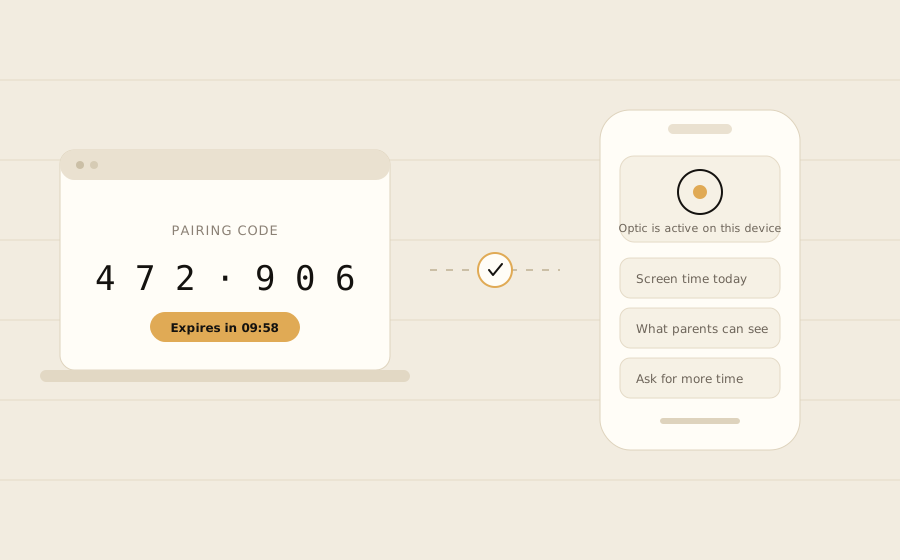
The other side
This screen is the whole reason Optic exists. Your child gets their own view — not a stripped-down one, the same data you have.
Time used, time left, and which rules are active right now. No surprises about what counts against the budget.
"What my parents can see" — written out, in full, in language a nine-year-old can read. It updates whenever you change a setting.
Request more time, ask for a site to be unblocked, or flag a rule as unfair. Requests come to you with their reason attached.
“He would push back, [and] he’d still look for workarounds and loopholes to try to bypass as much as he can.”
Using the dashboard
The overview is designed to be closed quickly. If nothing needs you, it says so and you get on with your evening.
“I have a full-time job. My job should not be a full-time monitor of his use of technology.”
Questions
Yes — deliberately. Optic never runs invisibly. It appears in the app list, shows a status icon, and your child can open it any time to see exactly what is shared with you. Covert monitoring is the fastest way to lose a teenager's trust, and it's the one thing we refuse to build.
Not without two things at once: a Windows administrator account and your Optic parent PIN. A standard child account has neither, so uninstalling, stopping the service, or changing the rules is out of reach. The service also protects itself against casual tampering and keeps working in Safe Mode.
No. Optic never sends message content to our servers and never shows you a transcript. On-device models look for risk signals and tell you the category and the app, so you know to start a conversation without having read one.
Roughly 15–40 MB a month per device. Summaries are compiled on the device and uploaded in small batches, so it works fine on a limited data plan and barely touches the battery — under 2% a day in our testing.
Free for up to three devices, with every core feature included. Family plans covering more devices are £3.50 a month, and school licences are priced per classroom. No ads on any tier, and we never sell data.
There is one parent account per family today — share the login between both of you. Separate logins per parent are on the roadmap, not in the product.
Usually not — most are locked down by the school's own MDM, which takes precedence. Optic will tell you during setup if it can't install rather than pretending to work.
Install it on your child's PC, pair it with your account, and set the rules together. You can change every single one of them later.
Download Optic Free for families · Windows 10 & 11